Often, people ask for a macro to delete all blank rows or all duplicate rows from a range of rows in a worksheet. This page has three macros, DeleteBlankRows, DeleteRowOnCell, and DeleteDuplicateRows, which will do this.
Remember, these macros delete entire rows from your worksheet. They do not delete individual cells.
The
DeleteBlankRows procedure shown below will delete all blank rows in the worksheet specified by the WorksheetName parameter. If this parameter is omitted, the active sheet is used. The procedure will delete rows that are entirely blank or contain cells that have only a single apostrophe (text formatting control character). The procedure requires the IsRowClear function, shown after the DeleteBlankRows procedure. It will not delete rows that contain formulas, even if that formula returns an empty value. The function will not delete rows that are precedents of a formula in a cell if those precedent rows have lower row number than the row. For example, if rows 1 to 5 are completely blank, and a formula in A10 references rows 1 to 5, rows 1 to 5 will not be deleted. However, if a formula refers to a range in higher numbered rows than the cell containing the formula, and those rows are entirely blank, those rows referenced by the formula will be deleted. Therefore, the reference of the formula may be changed as rows above the formula are deleted.Sub DeleteBlankRows(Optional WorksheetName As Variant)
''''''''''''''''''''''''''''''''''''''''''''''''''''''''''''
' DeleteBlankRows
' This function will delete all blank rows on the worksheet
' named by WorksheetName. This will delete rows that are
' completely blank (every cell = vbNullString) or that have
' cells that contain only an apostrophe (special Text control
' character).
' The code will look at each cell that contains a formula,
' then look at the precedents of that formula, and will not
' delete rows that are a precedent to a formula. This will
' prevent deleting precedents of a formula where those
' precedents are in lower numbered rows than the formula
' (e.g., formula in A10 references A1:A5). If a formula
' references cell that are below (higher row number) the
' last used row (e.g, formula in A10 reference A20:A30 and
' last used row is A15), the refences in the formula will
' be changed due to the deletion of rows above the formula.
'
''''''''''''''''''''''''''''''''''''''''''''''''''''''''''''
Dim RefColl As Collection
Dim RowNum As Long
Dim Prec As Range
Dim Rng As Range
Dim DeleteRange As Range
Dim LastRow As Long
Dim FormulaCells As Range
Dim Test As Long
Dim WS As Worksheet
Dim PrecCell As Range
If IsMissing(WorksheetName) = True Then
Set WS = ActiveSheet
Else
On Error Resume Next
Set WS = ActiveWorkbook.Worksheets(WorksheetName)
If Err.Number <> 0 Then
'''''''''''''''''''''''''''''''
' Invalid worksheet name.
'''''''''''''''''''''''''''''''
Exit Sub
End If
End If
If Application.WorksheetFunction.CountA(WS.UsedRange.Cells) = 0 Then
''''''''''''''''''''''''''''''
' Worksheet is blank. Get Out.
''''''''''''''''''''''''''''''
Exit Sub
End If
''''''''''''''''''''''''''''''''''''''
' Find the last used cell on the
' worksheet.
''''''''''''''''''''''''''''''''''''''
Set Rng = WS.Cells.Find(what:="*", after:=WS.Cells(WS.Rows.Count, WS.Columns.Count), lookat:=xlPart, _
searchorder:=xlByColumns, searchdirection:=xlPrevious, MatchCase:=False)
LastRow = Rng.Row
Set RefColl = New Collection
'''''''''''''''''''''''''''''''''''''
' We go from bottom to top to keep
' the references intact, preventing
' #REF errors.
'''''''''''''''''''''''''''''''''''''
For RowNum = LastRow To 1 Step -1
Set FormulaCells = Nothing
If Application.WorksheetFunction.CountA(WS.Rows(RowNum)) = 0 Then
''''''''''''''''''''''''''''''''''''
' There are no non-blank cells in
' row R. See if R is in the RefColl
' reference Collection. If not,
' add row R to the DeleteRange.
''''''''''''''''''''''''''''''''''''
On Error Resume Next
Test = RefColl(CStr(RowNum))
If Err.Number <> 0 Then
''''''''''''''''''''''''''
' R is not in the RefColl
' collection. Add it to
' the DeleteRange variable.
''''''''''''''''''''''''''
If DeleteRange Is Nothing Then
Set DeleteRange = WS.Rows(RowNum)
Else
Set DeleteRange = Application.Union(DeleteRange, WS.Rows(RowNum))
End If
Else
''''''''''''''''''''''''''
' R is in the collection.
' Do nothing.
''''''''''''''''''''''''''
End If
On Error GoTo 0
Err.Clear
Else
'''''''''''''''''''''''''''''''''''''
' CountA > 0. Find the cells
' containing formula, and for
' each cell with a formula, find
' its precedents. Add the row number
' of each precedent to the RefColl
' collection.
'''''''''''''''''''''''''''''''''''''
If IsRowClear(RowNum:=RowNum) = True Then
'''''''''''''''''''''''''''''''''
' Row contains nothing but blank
' cells or cells with only an
' apostrophe. Cells that contain
' only an apostrophe are counted
' by CountA, so we use IsRowClear
' to test for only apostrophes.
' Test if this row is in the
' RefColl collection. If it is
' not in the collection, add it
' to the DeleteRange.
'''''''''''''''''''''''''''''''''
On Error Resume Next
Test = RefColl(CStr(RowNum))
If Err.Number = 0 Then
''''''''''''''''''''''''''''''''''''''
' Row exists in RefColl. That means
' a formula is referencing this row.
' Do not delete the row.
''''''''''''''''''''''''''''''''''''''
Else
If DeleteRange Is Nothing Then
Set DeleteRange = WS.Rows(RowNum)
Else
Set DeleteRange = Application.Union(DeleteRange, WS.Rows(RowNum))
End If
End If
Else
On Error Resume Next
Set FormulaCells = Nothing
Set FormulaCells = WS.Rows(RowNum).SpecialCells(xlCellTypeFormulas)
On Error GoTo 0
If FormulaCells Is Nothing Then
'''''''''''''''''''''''''
' No formulas found. Do
' nothing.
'''''''''''''''''''''''''
Else
'''''''''''''''''''''''''''''''''''''''''''''''''''
' Formulas found. Loop through the formula
' cells, and for each cell, find its precedents
' and add the row number of each precedent cell
' to the RefColl collection.
'''''''''''''''''''''''''''''''''''''''''''''''''''
On Error Resume Next
For Each Rng In FormulaCells.Cells
For Each Prec In Rng.Precedents.Cells
RefColl.Add Item:=Prec.Row, key:=CStr(Prec.Row)
Next Prec
Next Rng
On Error GoTo 0
End If
End If
End If
'''''''''''''''''''''''''
' Go to the next row,
' moving upwards.
'''''''''''''''''''''''''
Next RowNum
''''''''''''''''''''''''''''''''''''''''''
' If we have rows to delete, delete them.
''''''''''''''''''''''''''''''''''''''''''
If Not DeleteRange Is Nothing Then
DeleteRange.EntireRow.Delete shift:=xlShiftUp
End If
End Sub
Function IsRowClear(RowNum As Long) As Boolean
''''''''''''''''''''''''''''''''''''''''''''''''''
' IsRowClear
' This procedure returns True if all the cells
' in the row specified by RowNum as empty or
' contains only a "'" character. It returns False
' if the row contains only data or formulas.
''''''''''''''''''''''''''''''''''''''''''''''''''
Dim ColNdx As Long
Dim Rng As Range
ColNdx = 1
Set Rng = Cells(RowNum, ColNdx)
Do Until ColNdx = Columns.Count
    If (Rng.HasFormula = True) Or (Rng.Value <> vbNullString) Then
        IsRowClear = False
        Exit Function
    End If
    Set Rng = Cells(RowNum, ColNdx).End(xlToRight)
    ColNdx = Rng.Column
Loop

IsRowClear = True

End Function
DeleteRowOnCell
The macro DeleteBlankRows will delete a row if the entire
row is blank. This macro will delete the entire row if a the cell in the specified
column is blank. Only this column is checked. Other columns are ignored. This
macro was suggested by Dana DeLouis, in the Excel programming newsgroup. Thanks,
Dana !
Public Sub
DeleteRowOnCell()
On Error Resume Next
Selection.SpecialCells(xlCellTypeBlanks).EntireRow.Delete
ActiveSheet.UsedRange
End Sub
To use this macro, select a columnar range of cells, and then run the macro.
If the cell in that column is blank, the entire row will be deleted. To process the
entire column, click the column header to select the entire column.
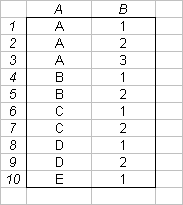
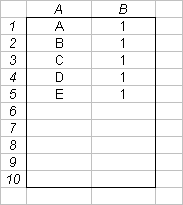
This macro will delete duplicate rows in a range. To use, select a single-column range of cells, comprising the range of rows from which duplicates are to be deleted, e.g., C2:C99. To determine whether a row has duplicates, the values in the selected column are compared. Entire rows are not compared against one another. Only the selected column is used for comparison. When duplicate values are found in the active column, the first row remains, and all subsequent rows are deleted.
Public Sub DeleteDuplicateRows()
'''''''''''''''''''''''''''''''''''''''''''''''''''''''''''''''''''''''''''''
' DeleteDuplicateRows
' This will delete duplicate records, based on the Active Column. That is,
' if the same value is found more than once in the Active Column, all but
' the first (lowest row number) will be deleted.
'
' To run the macro, select the entire column you wish to scan for
' duplicates, and run this procedure.
''''''''''''''''''''''''''''''''''''''''''''''''''''''''''''''''''''''''''''''
Dim R As Long
Dim N As Long
Dim V As Variant
Dim Rng As Range
On Error GoTo EndMacro
Application.ScreenUpdating = False
Application.Calculation = xlCalculationManual
Set Rng = Application.Intersect(ActiveSheet.UsedRange, _
ActiveSheet.Columns(ActiveCell.Column))
Application.StatusBar = "Processing Row: " & Format(Rng.Row, "#,##0")
N = 0
For R = Rng.Rows.Count To 2 Step -1
If R Mod 500 = 0 Then
Application.StatusBar = "Processing Row: " & Format(R,
"#,##0")
End If
V = Rng.Cells(R, 1).Value
'''''''''''''''''''''''''''''''''''''''''''''''''''''''''''''''''''''''''''
' Note that COUNTIF works oddly with a Variant that is equal to vbNullString.
' Rather than pass in the variant, you need to pass in vbNullString explicitly.
'''''''''''''''''''''''''''''''''''''''''''''''''''''''''''''''''''''''''''
If V = vbNullString Then
If Application.WorksheetFunction.CountIf(Rng.Columns(1),
vbNullString) > 1 Then
Rng.Rows(R).EntireRow.Delete
N = N + 1
End If
Else
If Application.WorksheetFunction.CountIf(Rng.Columns(1), V) >
1 Then
Rng.Rows(R).EntireRow.Delete
N = N + 1
End If
End If
Next R
EndMacro:
Application.StatusBar = False
Application.ScreenUpdating = True
Application.Calculation = xlCalculationAutomatic
MsgBox "Duplicate Rows Deleted: " & CStr(N)
End Sub
In the following examples, suppose we have select cells A1:A10 before running the DeleteDuplicateRows macro:
Here's another procedure that may be useful. Suppose you have two columns of data -- column A containing some names, and column B containing some dates. If the data is grouped (not necessarily sorted) by column A (but not necessarily by column B), this code will delete the duplicates rows, but retaining the latest entry (by column B) of each name in column A.
Sub DeleteTheOldies()
Dim RowNdx As Long
For RowNdx = Range("A1").End(xlDown).Row To 2 Step -1
If Cells(RowNdx, "A").Value = Cells(RowNdx - 1, "A").Value Then
If Cells(RowNdx, "B").Value <= Cells(RowNdx - 1, "B").Value Then
Rows(RowNdx).Delete
Else
Rows(RowNdx - 1).Delete
End If
End If
Next RowNdx
End Sub
These examples show some data before and after running the code.
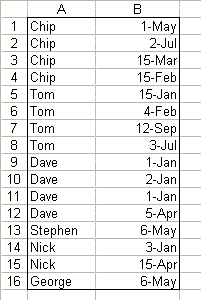
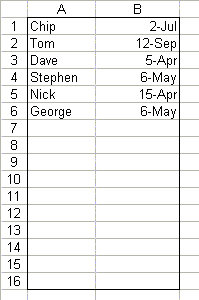
Note that only the latest (from column B) row remains for each group of
names. Notice, too, that in the "before" data, the names are
grouped, but the groups need not be in order.
Other Excel formulas and VBA procedures for working with duplicate and unique entries in lists can be found on the following pages: