|
Parsing Telephone Numbers
|
A frequent task many people encounter when working with
lists of data in Excel is splitting telephone numbers into the area code, phone
number, and extension components. For example, a user may have a list of
telephone numbers like "(913) 555-1212 X1122" and need to split them
up into 3 or 4 columns containing the area code (913), the prefix (555), the
number (1212) and the extension (X1122). This page describes a VBA
procedure for accomplishing this.
For related procedures for working with complete names
(first and last names, middle initials, etc), see the First
And Last Names page.
The procedure on this page can accept a telephone number
in a variety of formats, as described below. However, it can only use NANP
(USA and Canada) phone numbers, and cannot accept International Dialing
Codes.
|
|
| |
| Number Style |
Description |
| 5551212 |
Local telephone number
with no area code, and no delimiters |
| 555-1212 |
Local telephone number
with no area code, and dash delimiter |
| 9135551212 |
Full telephone number
without delimiters |
| 913-555-1212 |
Full telephone number
with two dash delimiters |
| 913-5551212 |
Full telephone number
with one dash delimiter |
| (913)5551212 |
Full telephone number with
area code parentheses, and no dashes |
| (913)555-1212 |
Full telephone number
with area code parentheses and dash delimiter. |
|
|
|
In addition, all of these telephone number types may
include an extension number, e.g., 913-555-1212
X1234, provided that the extension is delimited by a
single character, e.g., "X". Finally, all of these
formats may included embedded blanks.
The ParsePhoneNumbers function will return an array of up
to four elements for each telephone number. You can specify what you want
returned with the SplitWhat argument to the function. This argument can be
1, 2, or 3. The values are described below. Here, the pipe character
| indicates different cells.
|
|
|
| Value |
Elements |
Cell 1 |
Cell 2 |
Cell 3 |
Cell 4 |
| 1 |
2 |
913 |
555-1212 x1234 |
|
|
| 2 |
3 |
913 |
555-1212 |
x1234 |
|
| 3 |
4 |
913 |
555 |
1212 |
x1234 |
|
|
| |
This
procedure accepts a full telephone, as described above, and returns an array of
up to four
elements -- the Area Code, the Prefix, the Number, and the Extension. Therefore, you will need to enter this as an Array
Formula. Suppose you want the four parts of the full telephone
number in A2 to be returned to
B2:E2.
First, select cells B2:E2,
enter =ParsePhoneNumbers(A2)
and press Ctrl+Shift+Enter rather than just Enter.
|
|
|
If your full telephone numbers contain extensions, you
must include the ExtDelim
argument. This should be a 1 character string which indicates what
character is used to indicate the extension number in the full phone
number. For example, if your telephone numbers are stored as "(913)
555-1212 X1122" , you would use "X" as the ExtDelim
argument.
Below is the code for the ParsePhoneNumbers
function. You must also include the
NoSpaceString function, below, since this is used by the ParsePhoneNumbers
function.
|
|
|
Function ParsePhoneNumbers(FullNum As String, _
SplitWhat As Integer, _
Optional ExtDelim) As Variant
Dim PhoneNum As String
Dim AreaCode As String
Dim Prefix As String
Dim Num As String
Dim Ext As String
Dim Pos As Integer
Const cSplitAcOnly = 1 ' aaa | ppp-nnnnXeeee
Const cSplitAcNumber = 2 ' aaa | ppp-nnnn | Xeeee
Const cSplitAll = 3 ' aaa | ppp | nnnn | Xeeee
PhoneNum = NoSpaceString(FullNum)
If Not IsMissing(ExtDelim) Then
If Len(ExtDelim) > 0 Then
Pos = InStr(1, UCase(PhoneNum), UCase(ExtDelim),
_
vbTextCompare)
If Pos Then
Ext = Right(PhoneNum, Len(PhoneNum) - Pos + 1)
PhoneNum = Left(PhoneNum, Pos - 1)
End If
End If
End If
Select Case Len(PhoneNum)
Case 7, 8
AreaCode = ""
Prefix = Left(PhoneNum, 3)
Num = Right(PhoneNum, 4)
Case 10
AreaCode = Left(PhoneNum, 3)
Prefix = Mid(PhoneNum, 4, 3)
Num = Right(PhoneNum, 4)
Case 11
AreaCode = Left(PhoneNum, 3)
Prefix = Mid(PhoneNum, 5, 3)
Num = Right(PhoneNum, 4)
Case 12
If Left(PhoneNum, 1) = "(" Then
AreaCode = Mid(PhoneNum, 2, 3)
Prefix = Mid(PhoneNum, 6, 3)
Num = Right(PhoneNum, 4)
Else
AreaCode = Left(PhoneNum, 3)
Prefix = Mid(PhoneNum, 5, 3)
Num = Right(PhoneNum, 4)
End If
Case 13
AreaCode = Mid(PhoneNum, 2, 3)
Prefix = Mid(PhoneNum, 6, 3)
Num = Right(PhoneNum, 4)
Case Else
SplitWhat = -1
End Select
Select Case SplitWhat
Case cSplitAcOnly
ParsePhoneNumbers = _
Array(AreaCode, Prefix & "-" & Num & " " & Ext, "", "")
Case cSplitAcNumber
ParsePhoneNumbers = _
Array(AreaCode, Prefix & "-" & Num, Ext, "")
Case cSplitAll
ParsePhoneNumbers = Array(AreaCode, Prefix, Num, Ext)
Case Else
ParsePhoneNumbers = _
Array(CVErr(xlErrValue), CVErr(xlErrValue),
_
CVErr(xlErrValue), CVErr(xlErrValue))
End Select
End Function
Function NoSpaceString(S As String) As String
NoSpaceString = _
Application.WorksheetFunction.Substitute(S, " ", "")
End Function
|
|
| |
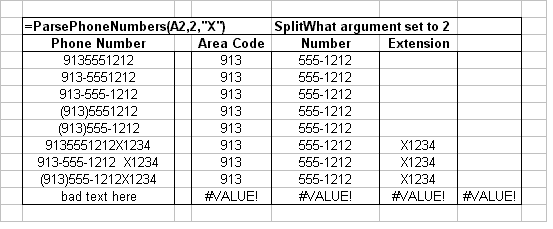
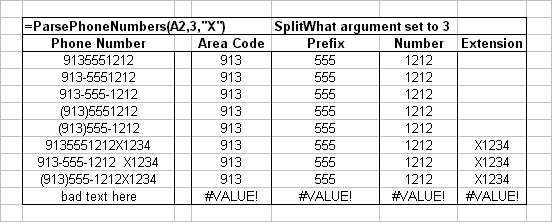
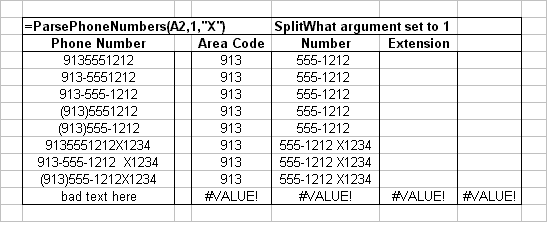
Below are some tables that illustrates how the
function will split apart telephone numbers.

|
|
|
Since this function returns an array, you can use the
INDEX worksheet function to retrieve any part of the function. For
example, the function
=INDEX(ParsePhoneNumbers(A1,1,"X"),2)
will return only the local phone number 555-1212 of the
phone number in A1.
For related procedures for working with complete names
(first and last names, middle initials, etc), see the First
And Last Names page.
|
|
|