A frequent task many people encounter when working with lists of data in Excel is splitting full names into the first-name and last name components. For example, a user may have full names like "Pearson, Charles H" in column A, and needs to put the last name in column B, the first name in column C, and the middle initial in column D. This page describes some worksheet formulas and VBA procedures you can use to accomplish this. For a related procedure for working with telephone numbers, see Parsing Telephone Numbers.
All of the functions and procedures on this page assume that your data is formatted as "LastName, FirstName MiddleName". For example, "Pearson, Charles H". Suffixes like "Jr" are permitted in the LastName, as are two word last names (e.g., St James) and hyphenated last names (e.g., Smith-Cross). For example, all the the following names are valid.
Pearson
Pearson, Charles
Pearson, Charles H
Pearson, Charles Henry
Pearson Jr, Charles
St James, Michael
St James Jr, Michael
Smith-Cross, Linda K
This section describes several worksheet functions you can use to split full names into the first and last name components.
To return the last name of the full name in A2, use the following formula.
=LEFT(A2,IF(ISERROR(FIND(",",A2,1)),LEN(A2),FIND(",",A2,1)-1))
To return the first name of the full name in A2, use the following formula.
=TRIM(IF(ISERROR(FIND(",",A2,1)),A2,MID(A2,FIND(",",A2,1)+1,
IF(ISERROR(FIND(" ",A2,FIND(",",A2,1)+2)),LEN(A2),
FIND(" ",A2,FIND(",",A2,1)+2))-FIND(",",A2,1))))
To return the middle name of the full name in A2, use the following formula.
=TRIM(RIGHT(A2,LEN(A2)-IF(ISERROR(FIND(" ",A2,
FIND(" ",A2,FIND(",",A2,1)+2))),LEN(A2),
FIND(" ",A2,FIND(" ",A2,FIND(",",A2,1)+2))-1)))
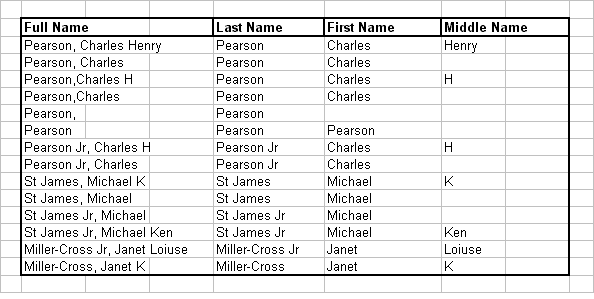
The results of these formulas are shown below:
This section describes a VBA function you can use the split full names into the the first and last name components. This procedure accepts a full name, as described above, and returns an array for four elements -- the Last Name, the First Name, the Middle Initial, and the Suffix. Therefore, you will need to enter this as an Array Formula. Suppose you want the four parts of the name in A2 to be returned to B2:E2. First, select cells B2:E2, enter =ParseOutNames(A2) and press Ctrl+Shift+Enter rather than just Enter.
The code recognizes the following suffixes:
JR, SR, II, III, IV
and any suffix beginning with a number (e.g., "4th").
The code will also convert all names to Proper Case.
Function ParseOutNames(FullName As String) As Variant
Dim FirstName As String
Dim LastName As String
Dim MidInitial As String
Dim Suffix As String
Dim Pos As Integer
Dim Pos2 As Integer
Dim Pos3 As Integer
Pos = InStr(1, FullName, ",", vbTextCompare)
If Pos = 0 Then
Pos = Len(FullName) + 1
End If
LastName = Trim(Left(FullName, Pos - 1))
Pos2 = InStr(1, LastName, " ", vbTextCompare)
If Pos2 Then
Pos3 = InStr(Pos2 + 1, LastName, " ", vbTextCompare)
If Pos3 Then
Suffix = Right(LastName, Len(LastName) - Pos3)
LastName = Left(LastName, Pos3 - 1)
Else
Suffix = Right(LastName, Len(LastName) - Pos2)
LastName = Left(LastName, Pos2 - 1)
End If
End If
Pos2 = InStr(Pos + 2, FullName, " ", vbTextCompare)
If Pos2 = 0 Then
Pos2 = Len(FullName)
End If
If Pos2 > Pos Then
FirstName = Mid(FullName, Pos + 1, Pos2 - Pos)
MidInitial = Right(FullName, Len(FullName) - Pos2)
End If
Pos = InStr(1, LastName, "-", vbTextCompare)
If Pos Then
LastName = Trim(StrConv(Left(LastName, Pos), vbProperCase)) & _
Trim(StrConv(Right(LastName, Len(LastName) - Pos), vbProperCase))
Else
LastName = Trim(StrConv(LastName, vbProperCase))
End If
FirstName = Trim(StrConv(FirstName, vbProperCase))
MidInitial = Trim(StrConv(MidInitial, vbProperCase))
Suffix = Trim(StrConv(Suffix, vbProperCase))
'
' suffix handling
'
Select Case UCase(Suffix)
Case "JR", "SR", "II", "III", "IV", "MD",
"PHD", "PH.D", "M.D."
Case Else
If Not IsNumeric(Left(Suffix, 1)) Then
LastName = LastName & " " & Suffix
Suffix = ""
End If
End Select
ParseOutNames = Array(LastName, FirstName, MidInitial, Suffix)
End Function
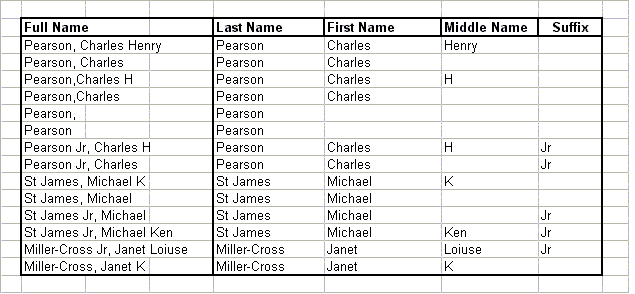
The result of this formula are shown below:
For a related procedure for working with telephone numbers, see Parsing Telephone Numbers.