All characters are assigned a standard code number. This is how characters are stored internally by the computer. For example, the capital letter "A" is stored as the number 65. In order to use special symbols like the symbol £, you usually need to know the code number. However, I have written a free Add-In for Excel that will display a list of symbols. This is described later.
Entering Symbols With The Keyboard
If you know the code number, you can enter that character any time by holding down the ALT key, and typing the 4-digit code number on the numeric keypad (the keys on the far right of your keyboard -- do not use the "normal" number keys above the letter keys). Even though character code numbers are only three digits (between 0 and 255), you must type in the leading zeros to ensure that you get the proper character. For example, to enter in the British Pound sign, whose code is 163, hold down the ALT key, and type 0163 on the numeric keypad.
Common Symbols And Codes
Euro
€ 0128
Ellipsis
… 0133
Dagger
† 0134
Double Dagger ‡ 0135
Bullet
• 0149
Trademark ™
0153
Cents
¢ 0162
Pounds
£ 0163
Yen
¥ 0165
Copyright
© 0169
Registered ®
0174
Plus/Minus ±
0177
Paragraph ¶
0182
Degree
° 0176
Creating A List Of Symbols
Of course, unless you use symbol frequently, you probably don't know what the code number is. You can quickly create a simple list of symbols on an Excel worksheet by entering the following formula in cell A1, and then copying the formula down through row 255:
=CHAR(ROW())
This will display in each cell the character whose code number is that cell's row number. For example, the Euro Currency symbol will appear in cell A128, which indicates that its code number is 128.
You can change the font of the column to see what characters are supplied by various fonts. Fonts with lots of useful symbols include Symbol, WebDings, the 3 WingDings fonts, Ref Specialty, ENCICON, Marlett, MonoType Sorts, and MS Reference. Note that you may not have all these fonts on your computer.
Using Symbols In Formulas
If you need to use a special symbol in a worksheet formula, you can use the function to return the character from its code number. For example, suppose you want to add a copyright notice to your worksheet. You could use the following formula:
=CHAR(169) & " Copyright, 2000."
The CHAR(169) function returns the actual copyright symbol, so it will appear properly in the cell. The "inverse" of the CHAR function is the CODE function. While CHAR takes a number and returns the actual character, the CODE function takes a character and returns the code number. For example, the following formula returns 65, the character code of a capital letter "A".
=CODE("A")
The VBA programming equivalents of the CHAR and CODE functions are Chr() and Asc(), respectively. For example, to display a message box with a copyright message, use the following code:
MsgBox Chr(169) & " Copyright, 2000"
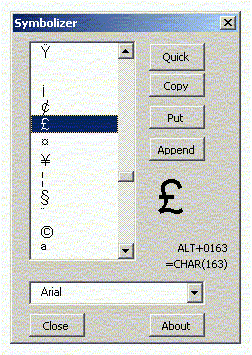
The procedures described above assume that you know what character code to use. Unlike Microsoft Word, Excel does not have an "Insert Symbol" function. The Symbolizer add-in is a simple remedy to this oversight. When you install the Symbolizer program, it will add an item to your Tools menu called Symbolizer. Choosing this menu item will display the Symbolizer screen, shown below.
By default, Symbolizer will display all 255 characters for a font. However, you can click the Quick button to reduce the list to 12 of the most commonly used symbols, including various currency symbols, and copyright and trademark symbols.