 Cell View Add-In
This page describes the CellView.xla Add-In For Excel.

Quite often when doing copy and paste operations from a non-Excel source such as a web page, you will
end up with special control characters in the worksheet cell. These characters are often not visible in a cell
but can affect cell formatting and arithmetic and lookup formulas. The CellView add-in shows you exactly
what is in the cell.
This add-in will work in 64-bit Excel on 64-bit Office.
See Installing An XLA Add-In for details about installing and loading an XLA Add-In. Note that
Excel 2007 does not allow the customizations that Excel97-2003 allowed. Therefore, the CellView command items
will appear on the Add-Ins tab of the Excel 2007 Ribbon, rather than on the View tab.
When you install and load the CellView.xla add-in file, it will automatically place
a new item on the View menu with a caption of View Cell Contents. When you click that menu item,
CellView will display the primary dialog, shown below.
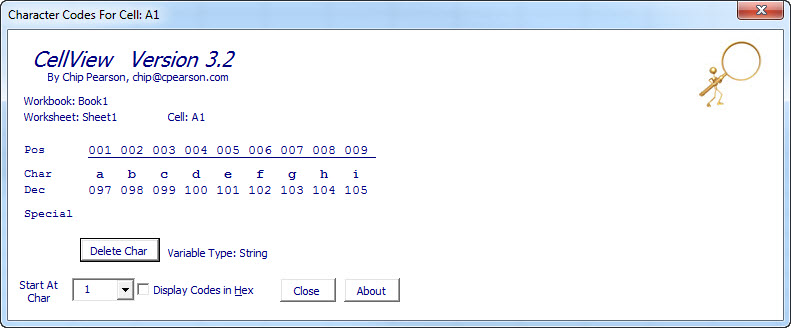
In this dialog, the Pos line indicates the position of each character. The Char line shows the actual
character in the cell. The Dec or Hex line indictes each character's code, in decimal or hexadecimal.
If a character is not a regular, displayable character (e.g., it is a character 9, tab), a ^
character is displayed in the Special line. You can choose at which character to start the view using the
Start At Char box. With this box in focus, you can use the up arrow and down arrow to scroll through the cell's
contents.
You can download the zip file that contains the XLA Add-In file. Once you have extracted the
file to some folder, open Excel, go to the Tools menu, choose Add-Ins and click Browse. In that
dialog, navigate to the folder in which you saved the CellView.xla file and click Open.
CellView is shareware, which means you can use it for free, but are encouraged to pay for it
if you find it useful.. The downloadable version
of CellView on this page is the full version. There are no limitations or restrictions
and only one nag message the first time you load CellView.. You can send the $25
fee via PayPal to
chip@cpearson.com.
This page last updated: 25-April-2016