Formulas
NOTE: This page is no longer updated.
Most of the topics here are now covered on other pages, or have pages of
their own. However, I will leave this page intact and available. See the
Topics Index page for a complete list of topics covered on my web site.
Array Formulas
Many of the formulas described here are Array Formulas, which are a special type of
formula
in Excel. If you are not familiar with Array Formulas, click here.
Array To Column
Sometimes it is useful to convert an MxN array into a single column of data, for example
for charting (a data series must be a single row or column). Click here for more details.
Averaging Values In A Range
You can use Excel's built in =AVERAGE function to
average a range of values. By using it
with other functions, you can extend its functionality.
For the formulas given below, assume that our data is in the range A1:A60.
Averaging Values Between Two Numbers
Use the array formula
=AVERAGE(IF((A1:A60>=Low)*(A1:A60<=High),A1:A60))
Where Low and High are
the values between which you want to average.
Averaging The Highest N Numbers In A Range
To average the N largest numbers in a range, use the array formula
=AVERAGE(LARGE(A1:A60,ROW(INDIRECT("1:10"))))
Change "1:10" to "1:N" where N is the number of values to average.
Averaging The Lowest N Numbers In A Range
To average the N smallest numbers in a range, use the array formula
=AVERAGE(SMALL(A1:A60,ROW(INDIRECT("1:10"))))
Change "1:10" to "1:N" where N is the number of values to average.
In all of the formulas above, you can use =SUM instead
of =AVERAGE to sum, rather
than average, the numbers.
Counting Values Between Two Numbers
If you need to count the values in a range that are between two numbers, for example
between
5 and 10, use the following array formula:
=SUM((A1:A10>=5)*(A1:A10<=10))
To sum the same numbers, use the following array formula:
=SUM((A1:A10>=5)*(A1:A10<=10)*A1:A10)
Counting Characters In A String
The following formula will count the number of "B"s, both upper and lower
case, in the string in B1.
=LEN(B1)-LEN(SUBSTITUTE(SUBSTITUTE(B1,"B",""),"b",""))
Date And Time Formulas
A variety of formulas useful when working with dates and times are
described on
the DateTime page.
Other Date Related Procedures are described on the following pages.
Adding Months And Years
The DATEDIF Function
Date Intervals
Dates And Times
Date And Time Entry
Holidays
Julian Dates
Duplicate And Unique Values In A Range
The task of finding duplicate or unique values in a range of data requires some
complicated
formulas. These procedures are described in Duplicates.
Dynamic Ranges
You can define a name to refer to a range whose size varies depending on its contents.
For example, you may want a range name that refers only to the portion of a list of
numbers that are not blank. such as only the first N
non-blank cells in A2:A20. Define a name called
MyRange, and set the Refers To property to:
=OFFSET(Sheet1!$A$2,0,0,COUNTA($A$2:$A$20),1)
Be sure to use absolute cell references in the formula. Also see then Named Ranges page for more information about dynamic ranges.
Finding The Used Part Of A Range
Suppose we've got a range of data called DataRange2,
defined as H7:I25, and that
cells H7:I17 actually contain values. The rest are blank.
We can find various properties
of the range, as follows:
To find the range that contains data, use the following
array formula:
=ADDRESS(ROW(DataRange2),COLUMN(DataRange2),4)&":"&
ADDRESS(MAX((DataRange2<>"")*ROW(DataRange2)),COLUMN(DataRange2)+
COLUMNS(DataRange2)-1,4)
This will return the range H7:I17. If you need the
worksheet name in the returned range,
use the following
array formula:
=ADDRESS(ROW(DataRange2),COLUMN(DataRange2),4,,"MySheet")&":"&
ADDRESS(MAX((DataRange2<>"")*ROW(DataRange2)),COLUMN(DataRange2)+
COLUMNS(DataRange2)-1,4)
This will return MySheet!H7:I17.
To find the number of rows that contain data, use the following
array formula:
=(MAX((DataRange2<>"")*ROW(DataRange2)))-ROW(DataRange2)+1
This will return the number 11, indicating that the first 11 rows of DataRange2 contain data.
To find the last entry in the first column of DataRange2,
use the following array formula:
=INDIRECT(ADDRESS(MAX((DataRange2<>"")*ROW(DataRange2)),
COLUMN(DataRange2),4))
To find the last entry in the second column of DataRange2,
use the following array formula:
=INDIRECT(ADDRESS(MAX((DataRange2<>"")*ROW(DataRange2)),
COLUMN(DataRange2)+1,4))
First And Last Names
Suppose you've got a range of data consisting of people's first and last names.
There are several formulas that will break the names apart into first and last names
separately.
Suppose cell
A2 contains
the name "John A Smith".
To return the last name, use
=RIGHT(A2,LEN(A2)-FIND("*",SUBSTITUTE(A2,"
","*",LEN(A2)-
LEN(SUBSTITUTE(A2," ","")))))
To return the first name, including the middle name (if present), use
=LEFT(A2,FIND("*",SUBSTITUTE(A2,"
","*",LEN(A2)-
LEN(SUBSTITUTE(A2," ",""))))-1)
To return the first name, without the middle name (if present), use
=LEFT(B2,FIND(" ",B2,1))
We can extend these ideas to the following. Suppose A1 contains the
string "First Second Third Last".
Returning First Word In A String
=LEFT(A1,FIND(" ",A1,1))
This will return the word "First".
Returning Last Word In A String
=RIGHT(A1,LEN(A1)-MAX(ROW(INDIRECT("1:"&LEN(A1)))
*(MID(A1,ROW(INDIRECT("1:"&LEN(A1))),1)=" ")))
This formula in as array formula.
(This formula comes from Laurent Longre). This will return the word "Last"
Returning All But First Word In A String
=RIGHT(A1,LEN(A1)-FIND("
",A1,1))
This will return the words "Second Third Last"
Returning Any Word Or Words In A String
The following two array formulas come compliments of Laurent Longre. To
return any single word from a single-spaced string of words, use the following
array formula:
=MID(A10,SMALL(IF(MID(" "&A10,ROW(INDIRECT
("1:"&LEN(A10)+1)),1)="
",ROW(INDIRECT("1:"&LEN(A10)+1))),
B10),SUM(SMALL(IF(MID(" "&A10&" ",ROW(INDIRECT
("1:"&LEN(A10)+2)),1)="
",ROW(INDIRECT("1:"&LEN(A10)+2))),
B10+{0,1})*{-1,1})-1)
Where A10 is the cell containing the text, and B10 is the number of the word you want to
get.
This formula can be extended to get any set of words in the string. To get the
words from M for N words (e.g., the 5th word for 3, or the 5th, 6th, and 7th words), use
the following array formula:
=MID(A10,SMALL(IF(MID(" "&A10,ROW(INDIRECT
("1:"&LEN(A10)+1)),1)="
",ROW(INDIRECT("1:"&LEN(A10)+1))),
B10),SUM(SMALL(IF(MID(" "&A10&" ",ROW(INDIRECT
("1:"&LEN(A10)+2)),1)="
",ROW(INDIRECT("1:"&LEN(A10)+2))),
B10+C10*{0,1})*{-1,1})-1)
Where A10 is the cell containg the text, B10 is the number of the word to get, and C10 is
the number of words, starting at B10, to get.
Note that in the above array formulas, the {0,1} and {-1,1} are enclosed in array braces (curly brackets {} ) not
parentheses.
Download a workbook illustrating these formulas.
Grades
A frequent question is how to assign a letter grade to a numeric value. This is
simple. First create a define name called "Grades" which refers to the
array:
={0,"F";60,"D";70,"C";80,"B";90,"A"}
Then, use VLOOKUP to convert the number to the grade:
=VLOOKUP(A1,Grades,2)
where A1 is the cell contains the numeric value. You can add entries to the Grades
array for other grades like C- and C+. Just make sure the numeric values in the
array are in increasing order.
High And Low Values
You can use Excel's Circular Reference tool to have a cell that contains the highest ever
reached value. For example, suppose you have a worksheet used to track team scores.
You can set up a cell that will contain the highest score ever reached, even
if that score is deleted from the list. Suppose the score are in A1:A10. First, go to the Tools->Options dialog, click
on the Calculation tab, and check the Interations check box. Then, enter the
following formula in cell B1:
=MAX(A1:A10,B1)
Cell B1 will contian the highest value that has ever been
present in A1:A10, even if that value is deleted from the
range. Use the =MIN function to get the lowest ever
value.
Another method to do this, without using circular references, is provided by Laurent
Longre, and uses the CALL function to access the Excel4 macro function library.
Click here for details.
Left Lookups
The easiest way do table lookups is with the =VLOOKUP
function. However, =VLOOKUP requires
that the value returned be to the right of the value you're looking up. For example,
if you're
looking up a value in column B, you cannot retrieve values in column A. If you need
to
retrieve a value in a column to the left of the column containing the lookup value, use
either of the following formulas:
=INDIRECT(ADDRESS(ROW(Rng)+MATCH(C1,Rng,0)-1,COLUMN(Rng)-ColsToLeft))
Or
=INDIRECT(ADDRESS(ROW(Rng)+MATCH(C1,Rng,0)-1,COLUMN(A:A) ))
Where Rng is the range containing the lookup values,
and ColsToLeft is the number of columns
to the left of Rng that the retrieval values are. In
the second syntax, replace "A:A" with the
column containing the retrieval data. In both examples, C1 is the value you want to look up.
See the Lookups page for many more examples of
lookup formulas.
Minimum And Maximum Values In A Range
Of course you can use the =MIN and =MAX functions to return the minimum and maximum
values of a range. Suppose we've got a range of numeric values called NumRange.
NumRange may contain duplicate values. The formulas
below use the following example:
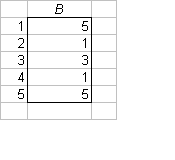
Address Of First Minimum In A Range
To return the address of the cell containing the first (or only) instance of the
minimum of a list,
use the following array formula:
=ADDRESS(MIN(IF(NumRange=MIN(NumRange),ROW(NumRange))),COLUMN(NumRange),4)
This function returns B2, the address of the first '1'
in the range.
Address Of The Last Minimum In A Range
To return the address of the cell containing the last (or only) instance of the
minimum of a list,
use the following array formula:
=ADDRESS(MAX(IF(NumRange=MIN(NumRange),ROW(NumRange)*(NumRange<>""))),
COLUMN(NumRange),4)
This function returns B4, the address of the last '1'
in the range.
Address Of First Maximum In A Range
To return the address of the cell containing the first instance of the maximum
of a list,
use the following array formula:
=ADDRESS(MIN(IF(NumRange=MAX(NumRange),ROW(NumRange))),COLUMN(NumRange),4)
This function returns B1, the address of the first '5'
in the range.
Address Of The Last Maximum In A Range
To return the address of the cell containing the last instance of the maximum of
a list,
use the following array formula:
=ADDRESS(MAX(IF(NumRange=MAX(NumRange),ROW(NumRange)*(NumRange<>""))),
COLUMN(NumRange),4)
This function returns B5, the address of the last '5'
in the range.
Download a workbook illustrating these formulas.
Most Common String In A Range
The following array formula will return the most frequently used entry in a range:
=INDEX(Rng,MATCH(MAX(COUNTIF(Rng,Rng)),COUNTIF(Rng,Rng),0))
Where Rng is the range containing the data.
Ranking Numbers
Often, it is useful to be able to return the N highest or
lowest values from a range of data.
Suppose we have a range of numeric data called RankRng.
Create a range next to
RankRng (starting in the same row, with the same number of
rows) called TopRng.
Also, create a named cell called TopN, and enter into it
the number of values you want to
return (e.g., 5 for the top 5 values in RankRng). Enter
the following formula in the first cell in
TopRng, and use Fill Down to fill out the range:
=IF(ROW()-ROW(TopRng)+1>TopN,"",LARGE(RankRng,ROW()-ROW(TopRng)+1))
To return the TopN smallest values of RankRng, use
=IF(ROW()-ROW(TopRng)+1>TopN,"",SMALL(RankRng,ROW()-ROW(TopRng)+1))
The list of numbers returned by these functions will automatically change as you change
the
contents of RankRng or TopN.
Download a workbook illustrating these formulas.
See the Ranking page for much more information about
ranking numbers in Excel.
Removing Blank Cells In A Range
The procedures for creating a new list consisting of only those entries in another list,
excluding
blank cells, are described in NoBlanks.
Summing Every Nth Value
You can easily sum (or average) every Nth cell in a column range. For example, suppose you
want to sum every 3rd cell.
Suppose your data is in A1:A20, and N = 3 is in D1. The
following array formula will sum the values in A3, A6, A9,
etc.
=SUM(IF(MOD(ROW($A$1:$A$20),$D$1)=0,$A$1:$A$20,0))
If you want to sum the values in A1, A4, A7, etc., use
the following array formula:
=SUM(IF(MOD(ROW($A$1:$A$20)-1,$D$1)=0,$A$1:$A$20,0))
If your data ranges does not begin in row 1, the formulas are slightly more
complicated. Suppose our data is in B3:B22, and N = 3 is in D1. To
sum the values in rows 5, 8, 11, etc, use the following
array formula:
=SUM(IF(MOD(ROW($B$3:$B$22)-ROW($B$3)+1,$D$1)=0,$B$3:B$22,0))
If you want to sum the values in rows 3, 6, 9, etc, use
the following array formula:
=SUM(IF(MOD(ROW($B$3:$B$22)-ROW($B$3),$D$1)=0,$B$3:B$22,0))
Download a workbook illustrating these formulas.
Miscellaneous
Sheet Name
Suppose our active sheet is named "MySheet"
in the file C:\Files\MyBook.Xls.
To return the full sheet name (including the file path) to a cell, use
=CELL("filename",A1)
Note that the argument to the =CELL function is the
word "filename" in quotes, not your
actual filename.
This will return "C:\Files\[MyBook.xls]MySheet"
To return the sheet name, without the path, use
=MID(CELL("filename",A1),FIND("]",CELL("filename",A1))+1,
LEN(CELL("filename",A1))-FIND("]",CELL("filename",A1)))
This will return "MySheet"
File Name
Suppose our active sheet is named "MySheet" in the file C:\Files\MyBook.Xls.
To return the file name without the path, use
=MID(CELL("filename",A1),FIND("[",CELL("filename",A1))+1,FIND("]",
CELL("filename",A1))-FIND("[",CELL("filename",A1))-1)
This will return "MyBook.xls"
To return the file name with the path, use either
=LEFT(CELL("filename",A1),FIND("]",CELL("filename",A1)))
Or
=SUBSTITUTE(SUBSTITUTE(LEFT(CELL("filename",A1),FIND("]",
CELL("filename",A1))),"[",""),"]","")
The first syntax will return "C:\Files\[MyBook.xls]"
The second syntax will return "C:\Files\MyBook.xls"
In all of the examples above, the A1 argument to the =CELL function forces Excel to get the sheet name from the sheet
containing the formula. Without it, and Excel calculates the =CELL function when another sheet is active, the cell would
contain the name of the active sheet, not the sheet actually containing the formula.
Download a workbook illustrating these formulas.